Using Jupyter Notebooks from GUI
Starting with GRASS 8.6, the GUI provides integrated support for launching and managing Jupyter Notebooks directly from the interface. This lets you combine interactive Python notebooks with your GUI workflow.
Getting Started
To launch Jupyter from GUI, go to File → Jupyter Notebook or click the Jupyter button in the Tools toolbar at the top of the GRASS window. The startup dialog lets you configure your notebook environment:

Configuration Options
-
Where to Save Notebooks: Select where your Jupyter notebooks will be stored. You can choose an existing directory, create a new one, or leave the field empty to use your current directory. Notebooks can be saved anywhere, including inside your current GRASS project.
-
Create Welcome Notebook: Check this option to automatically create a
welcome.ipynbtemplate notebook with GRASS-specific examples and quick-start code. Recommended for new users.
Display Modes
After configuring the storage, choose how to interact with Jupyter notebooks:
Browser Mode
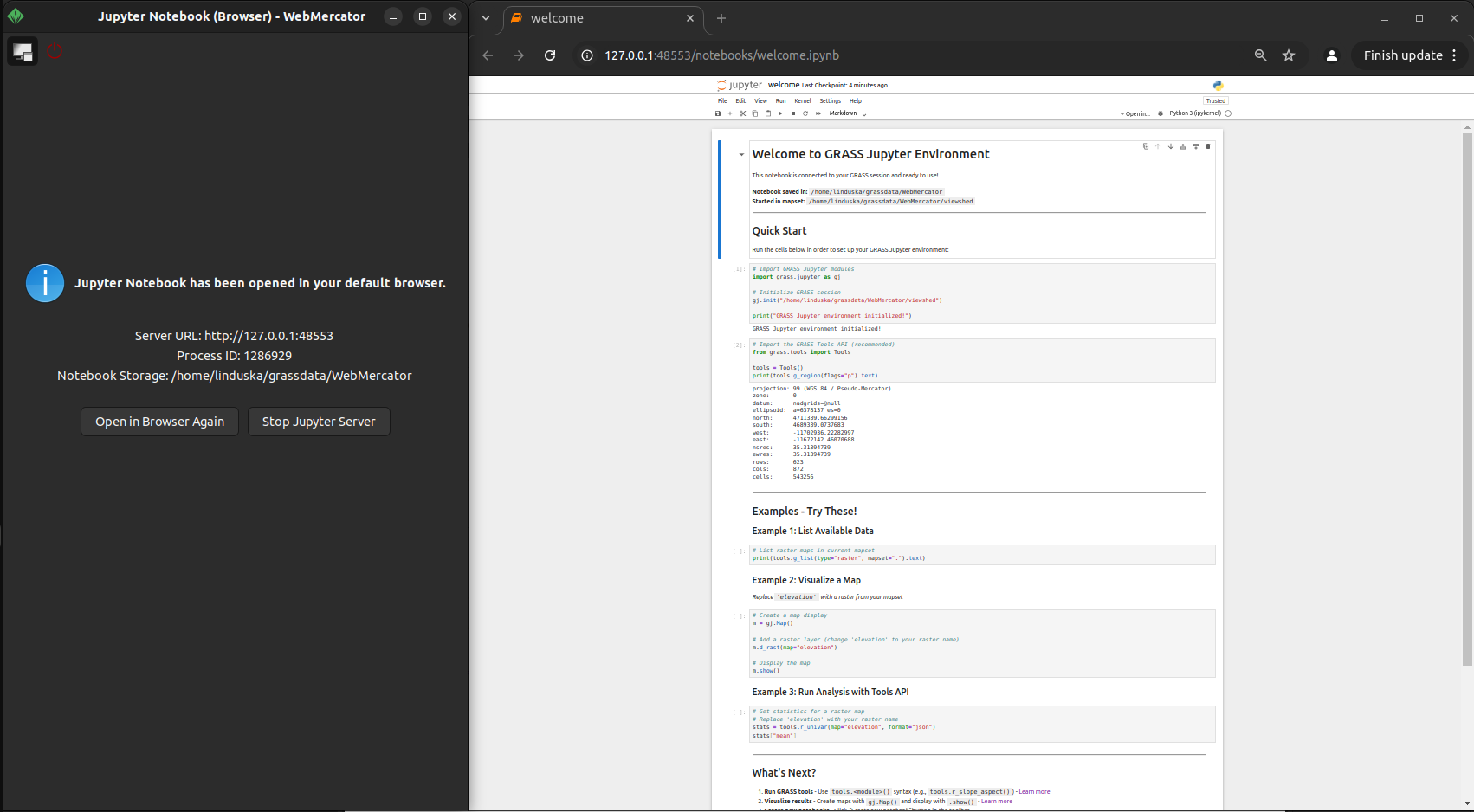
In Browser Mode, Jupyter opens in your default system web browser.
This mode provides:
- Full Jupyter Lab/Notebook interface with all features
- File browser and notebook management
- Terminal access and extensions support
- A control panel in GRASS GUI showing server URL, PID, and storage location
- Quick access to reopen the browser or stop the server
Integrated Mode
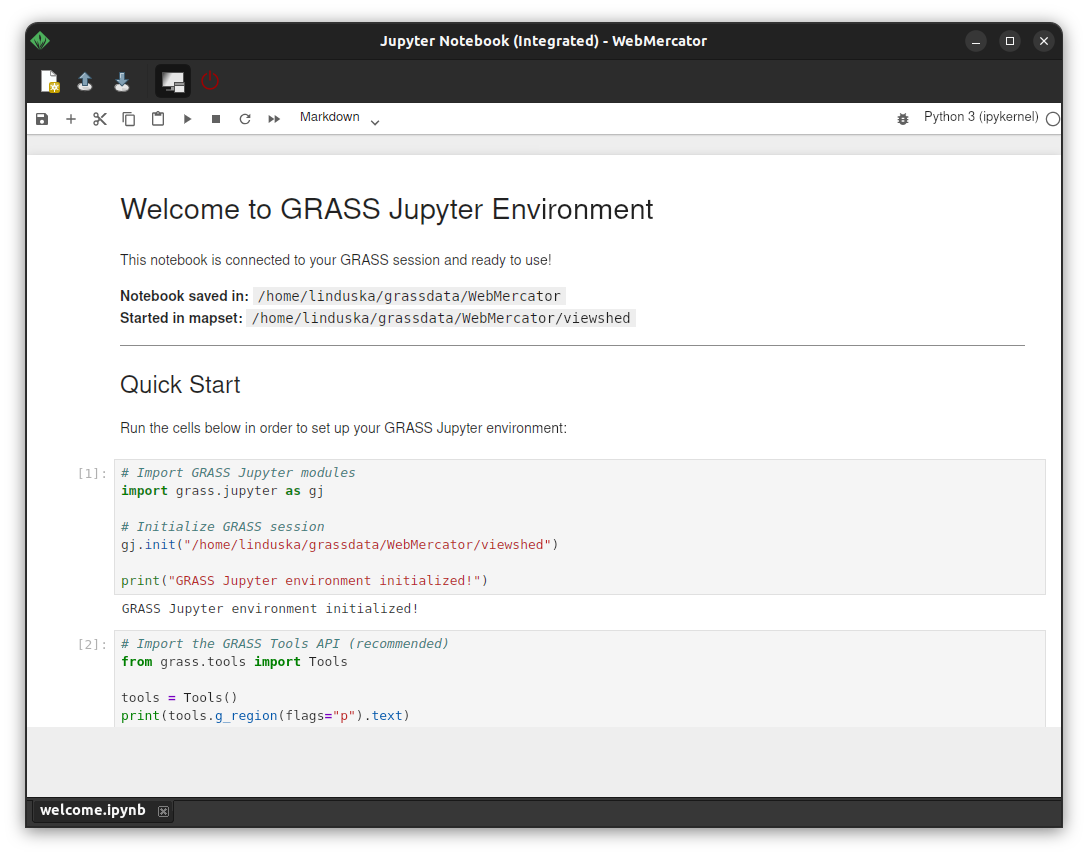
In Integrated Mode, Jupyter notebooks are embedded directly in the GRASS GUI window (if the wx.html2 library is available). This mode offers:
- Jupyter interface embedded as a native GRASS GUI tab
- Seamless integration with other GRASS tools and panels
- Import/export notebooks, and create new notebooks from the toolbar
- External links (documentation, tutorials) open in your system browser
Toolbar Actions
The Integrated mode toolbar provides quick access to common operations:
- Create: Create a new notebook with prepared GRASS module imports and session initialization
- Import: Import existing .ipynb files into your notebook storage
- Export: Export the current notebook to a different location
- Undock: Open the notebook in a separate window (also available in the browser mode)
- Stop: Stop the Jupyter server and close the notebook (also available in the browser mode)
Managing Sessions
Multiple Notebook Sessions
You can launch multiple Jupyter sessions with different storage locations. Each session appears as a separate tab in the GRASS GUI, with its storage location shown in the tab name. Hover over a tab to see the full storage path.
Server Management
GRASS automatically manages Jupyter server instances:
- Each notebook storage location runs on a separate Jupyter server
- Servers are automatically stopped when GRASS exits
- Multiple notebooks from the same storage share one server instance
- Server information (URL, PID) is displayed in the interface
Troubleshooting
Install Missing Notebook Package
If the notebook package is missing when you click Launch Jupyter
Notebook, GRASS detects this automatically and opens a dialog that offers to
install it. Clicking Install runs:
<GRASS Python> -m pip install notebook
in the current GRASS Python environment. After installation, the Jupyter Startup dialog opens normally.
If the automatic installation fails, an error dialog displays the exact command you can run manually. On systems with an externally managed Python environment (e.g. Debian), pip may refuse to install packages. In that case you have two options:
- Allow pip to override the system restriction:
<GRASS Python> -m pip install notebook --break-system-packages
- Install the system package instead:
sudo apt install jupyter-notebook
Integrated Mode Requirements
Integrated mode requires two conditions to be met:
wx.html2 module availability (all platforms)
First, GRASS checks whether wx.html2 is importable. If this fails, Integrated
mode stops with an error:
Integrated mode requires wx.html2.WebView, which is not available on this system.
This can happen if wxPython or wxWidgets were built without HTML2/WebView support.
On Debian-based systems, a known fix is:
sudo apt install libwebkit2gtk-4.1-dev
<GRASS Python> -m pip install --force-reinstall wxpython==<current version>
Because the current GRASS session still uses the previously loaded wxPython build, a restart is required after reinstalling. After restart, Integrated mode should start successfully.
Microsoft Edge WebView2 backend availability (Windows only)
If wx.html2 is available, GRASS performs an additional check on Windows
to ensure the backend is Microsoft Edge WebView2.
If WebView2 is not available, wx may fall back to the legacy Internet Explorer backend, which is not compatible with modern Jupyter Notebook interface.
Some wxPython builds (including current OSGeo4W-based builds) are compiled without WebView2 support, so Integrated mode cannot start.
When you choose Integrated mode and WebView2 is not available, GRASS detects this and opens a dialog offering to reinstall wxPython using pip. The reinstall keeps the currently installed wxPython version, but fetches the pip wheel that includes WebView2 support. Clicking Reinstall runs:
<GRASS Python> -m pip install --force-reinstall wxpython==<current version>
After reinstalling wxPython, restart GRASS and try Integrated mode again.
Technical Notes
Command Used to Start Jupyter
GRASS starts Jupyter with the same command on Windows, Linux, and macOS:
<GRASS Python> -m notebook ...
The main reason for this choice over <GRASS Python> -m jupyter notebook
is Windows standalone reliability. On Windows standalone installations,
<GRASS Python> -m jupyter notebook can fail even when Notebook is installed
and available. A typical symptom is an import/bootstrap error (for example
Could not import runpy._run_module_as_main or
AssertionError: SRE module mismatch).
This usually indicates a Python environment mismatch in the jupyter launcher
path, where imported modules do not fully match the active GRASS Python runtime.
Using python -m notebook avoids that extra launcher layer.
Tips
-
The
welcome.ipynbtemplate includes GRASS session initialization and practical examples of listing data, visualizing maps, and running analyses with the Tools API -
You can switch between browser and integrated modes by closing one and relaunching Jupyter with the same storage location
-
Tab tooltips show the full storage path - useful when working with multiple storage locations
SOURCE CODE
Available at: wxGUI.jupyter source code
(history)
Latest change: Friday Jul 17 09:14:49 2026 in commit d6c75ad