r.in.vect
Converts an external vector layer to a raster layer using gdal.Rasterize and imports this raster layer.
r.in.vect [-cvrdla] input=name [layer=string] output=name [attribute_column=name] [label_column=name] [value=integer] [background=float] [where=sql_query] [sql=string] [memory=memory in MB] [--overwrite] [--verbose] [--quiet] [--qq] [--ui]
Example:
r.in.vect input=name output=name value=0
grass.tools.Tools.r_in_vect(input, layer=None, output, attribute_column=None, label_column=None, value=None, background=None, where=None, sql=None, memory=300, flags=None, overwrite=None, verbose=None, quiet=None, superquiet=None)
Example:
tools = Tools()
tools.r_in_vect(input="name", output="name", value=0)
This grass.tools API is experimental in version 8.5 and expected to be stable in version 8.6.
grass.script.run_command("r.in.vect", input, layer=None, output, attribute_column=None, label_column=None, value=None, background=None, where=None, sql=None, memory=300, flags=None, overwrite=None, verbose=None, quiet=None, superquiet=None)
Example:
gs.run_command("r.in.vect", input="name", output="name", value=0)
Parameters
input=name [required]
Name of input file
layer=string
OGR layer name
OGR layer name, like the name of an shapefile or the name of a layer in a Geopackage (see v.in.ogr for examples)
output=name [required]
Name for output raster map
attribute_column=name
Column with raster values
Name of attribute column that hold the values to be used as raster values (data type must be numeric)
label_column=name
Column with raster labels
Name of attribute column that hold the values to be used as raster labels
value=integer
Raster value
Raster value (if attribute_column is left empty)
background=float
Value for background pixels
Value to assign to pixels not covered by features. If not given, these pixels will be set to NULL (nodata).
where=sql_query
WHERE conditions of SQL statement without 'where' keyword
Attribute query for selecting features (without the WHERE keyword), e.g. "type = 'road' AND status = 1". Mutually exclusive with 'sql'.
sql=string
SQL statement
SQL statement to select or alter features. Mutually exclusive with 'where'.
memory=memory in MB
Maximum memory to be used (in MB)
Cache size for raster rows
Default: 300
-c
Count overlapping features
Count overlapping features (additive mode). Sets burn value to 1, sums overlaps, and initializes raster to 0.
-v
Convert whole vector
Set this flag if the whole vector layer needs to be converted. By default, only the part overlapping with the computational region is converted.
-r
Match region to vector bounding box
Set region extent to match that of the bounding box of the vector layer.
-d
Create densified lines
Pixels touched by lines or polygons will be included, not just those on the line render path, or whose center point is within the polygon (default: thin lines).
-l
Linearize curved geometries
Convert curved geometry types (e.g., MultiSurface, CurvePolygon) to their linear equivalents before rasterizing. Required for sources like the Dutch BGT that use curve-based GML geometries.
-a
Print attribute table columns
Print the names of the columns in the attribute table and exit
--overwrite
Allow output files to overwrite existing files
--help
Print usage summary
--verbose
Verbose module output
--quiet
Quiet module output
--qq
Very quiet module output
--ui
Force launching GUI dialog
input : str, required
Name of input file
Used as: input, file, name
layer : str, optional
OGR layer name
OGR layer name, like the name of an shapefile or the name of a layer in a Geopackage (see v.in.ogr for examples)
output : str | type(np.ndarray) | type(np.array) | type(gs.array.array), required
Name for output raster map
Used as: output, raster, name
attribute_column : str, optional
Column with raster values
Name of attribute column that hold the values to be used as raster values (data type must be numeric)
Used as: input, dbcolumn, name
label_column : str, optional
Column with raster labels
Name of attribute column that hold the values to be used as raster labels
Used as: input, dbcolumn, name
value : int, optional
Raster value
Raster value (if attribute_column is left empty)
background : float, optional
Value for background pixels
Value to assign to pixels not covered by features. If not given, these pixels will be set to NULL (nodata).
where : str, optional
WHERE conditions of SQL statement without 'where' keyword
Attribute query for selecting features (without the WHERE keyword), e.g. "type = 'road' AND status = 1". Mutually exclusive with 'sql'.
Used as: input, sql_query, sql_query
sql : str, optional
SQL statement
SQL statement to select or alter features. Mutually exclusive with 'where'.
memory : int, optional
Maximum memory to be used (in MB)
Cache size for raster rows
Used as: memory in MB
Default: 300
flags : str, optional
Allowed values: c, v, r, d, l, a
c
Count overlapping features
Count overlapping features (additive mode). Sets burn value to 1, sums overlaps, and initializes raster to 0.
v
Convert whole vector
Set this flag if the whole vector layer needs to be converted. By default, only the part overlapping with the computational region is converted.
r
Match region to vector bounding box
Set region extent to match that of the bounding box of the vector layer.
d
Create densified lines
Pixels touched by lines or polygons will be included, not just those on the line render path, or whose center point is within the polygon (default: thin lines).
l
Linearize curved geometries
Convert curved geometry types (e.g., MultiSurface, CurvePolygon) to their linear equivalents before rasterizing. Required for sources like the Dutch BGT that use curve-based GML geometries.
a
Print attribute table columns
Print the names of the columns in the attribute table and exit
overwrite : bool, optional
Allow output files to overwrite existing files
Default: None
verbose : bool, optional
Verbose module output
Default: None
quiet : bool, optional
Quiet module output
Default: None
superquiet : bool, optional
Very quiet module output
Default: None
Returns:
result : grass.tools.support.ToolResult | np.ndarray | tuple[np.ndarray] | None
If the tool produces text as standard output, a ToolResult object will be returned. Otherwise, None will be returned. If an array type (e.g., np.ndarray) is used for one of the raster outputs, the result will be an array and will have the shape corresponding to the computational region. If an array type is used for more than one raster output, the result will be a tuple of arrays.
Raises:
grass.tools.ToolError: When the tool ended with an error.
input : str, required
Name of input file
Used as: input, file, name
layer : str, optional
OGR layer name
OGR layer name, like the name of an shapefile or the name of a layer in a Geopackage (see v.in.ogr for examples)
output : str, required
Name for output raster map
Used as: output, raster, name
attribute_column : str, optional
Column with raster values
Name of attribute column that hold the values to be used as raster values (data type must be numeric)
Used as: input, dbcolumn, name
label_column : str, optional
Column with raster labels
Name of attribute column that hold the values to be used as raster labels
Used as: input, dbcolumn, name
value : int, optional
Raster value
Raster value (if attribute_column is left empty)
background : float, optional
Value for background pixels
Value to assign to pixels not covered by features. If not given, these pixels will be set to NULL (nodata).
where : str, optional
WHERE conditions of SQL statement without 'where' keyword
Attribute query for selecting features (without the WHERE keyword), e.g. "type = 'road' AND status = 1". Mutually exclusive with 'sql'.
Used as: input, sql_query, sql_query
sql : str, optional
SQL statement
SQL statement to select or alter features. Mutually exclusive with 'where'.
memory : int, optional
Maximum memory to be used (in MB)
Cache size for raster rows
Used as: memory in MB
Default: 300
flags : str, optional
Allowed values: c, v, r, d, l, a
c
Count overlapping features
Count overlapping features (additive mode). Sets burn value to 1, sums overlaps, and initializes raster to 0.
v
Convert whole vector
Set this flag if the whole vector layer needs to be converted. By default, only the part overlapping with the computational region is converted.
r
Match region to vector bounding box
Set region extent to match that of the bounding box of the vector layer.
d
Create densified lines
Pixels touched by lines or polygons will be included, not just those on the line render path, or whose center point is within the polygon (default: thin lines).
l
Linearize curved geometries
Convert curved geometry types (e.g., MultiSurface, CurvePolygon) to their linear equivalents before rasterizing. Required for sources like the Dutch BGT that use curve-based GML geometries.
a
Print attribute table columns
Print the names of the columns in the attribute table and exit
overwrite : bool, optional
Allow output files to overwrite existing files
Default: None
verbose : bool, optional
Verbose module output
Default: None
quiet : bool, optional
Quiet module output
Default: None
superquiet : bool, optional
Very quiet module output
Default: None
DESCRIPTION
r.in.vect transforms an external vector file (like GeoPackage) into a raster file and imports it into GRASS GIS. Optionally, attributes from the vector layer can be converted to raster category labels.
When users have a vector file that they want to convert to a raster map, they would normally import the vector map into GRASS GIS using, e.g., v.in.ogr, and subsequently convert the resulting vector into a raster map using v.to.rast. Because of the topological vector format of GRASS GIS, importing large complex vector maps can be slow. To speed up the process, r.in.vect converts the user-defined vector file to an intermediate geoTIF file (using gdal.rasterize) and imports it into GRASS GIS.
The objects in the vector map will be assigned a user-defined value using the value parameter. Alternatively, the user can use the attribute_column to specify the name of an existing column from the vector map's attribute table. The values in that column will be used as raster values in the output raster map.
Setting the -c flag counts the number of overlapping features per pixel and assigns that count as the raster value, effectively creating a heatmap.
Optionally, only features selected with the where or sql option can be imported.
By selecting the Count overlapping features options, overlapping features are counted, or if Column with raster values is selected, the values of the overlapping features are summed up. This enables the creation of density- or heatmap-style rasters.
NOTES
By default, r.in.vect will only affect data in areas lying inside the boundaries of the current computational region. Before running the function, users should therefore ensure that the computational region is correctly set, and that the region's resolution is at the desired level.
Alternatively, use the -v flag to import the entire vector extent, ignoring the current region boundaries. By default, this produces a full-map raster without modifying the current computational region. To update the region to match the imported raster, include the -r flag. This extends the region bounds to encompass the new layer while ensuring the grid remains aligned with the existing resolution.
If the coordinate reference system (CRS) of the vector file differs from that of the mapset in which users want to import the raster, the vector file will be first reprojected using ogr2ogr.
The label_column parameter can be used to assign raster category labels. Users should check if each unique value from the category column has one corresponding label in the label column. If there are categories with more than one label, the first from the label column will be used (and a warning will be printed).
With the -d flag, all pixels touched by lines or polygons will be updated, not just those on the line render path, or whose center point is within the polygon. For lines, this is similar to setting the -d flag in v.to.rast.
For simple and small vector layers, it is probably faster to import the vector layer first and converting it to a raster in GRASS.
EXAMPLES
The examples of r.in.vect use vector maps from the North Carolina sample data set.
Example 1
First, export a vector layer as a GeoPackage.
# Export the geology vector map as Geopackage
v.out.ogr input=geology@PERMANENT output=geology.gpkg format=GPKG
Import the geology.gpkg as raster. Raster cells overlapping with the vector features will be assigned a value of 1, and the other raster cells null. If you have RAM to spare, increase the memory to speed up the import.
# Set the region
g.region -a vector=geology res=500

# Import the GeoPackage
r.in.vect input=geology.gpkg \
output=geology_rast \
value=1 \
memory=2000
 Figure 1: The geology
vector file was converted to, and imported as a raster into GRASS GIS, using the
default settings.
Figure 1: The geology
vector file was converted to, and imported as a raster into GRASS GIS, using the
default settings.
If the GeoPackage file (or any other data source) has multiple layers, users need to specify which layer to use with the layer parameter. Otherwise, the first layer will be selected.
Example 2
Import the geology.gpkg as raster. Specify the column holding the values to use as raster values and the column holding the labels for the raster values.
# Import the layer
r.in.vect input=geology.gpkg \
output=geology_rast2 \
attribute_column=GEOL250_ \
label_column=GEO_NAME \
memory=2000

# Assign random colors
r.colors map=geology_rast2 color=random
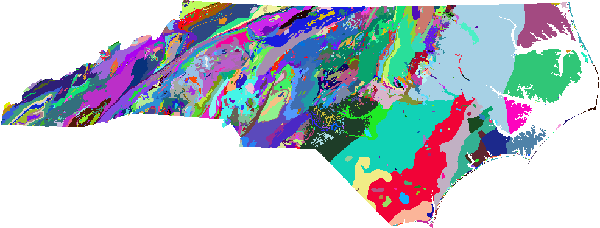 Figure 2: The geology
vector file converted to raster and imported into GRASS GIS using the values
from the vector attribute column GEOL250_ as raster values.
Figure 2: The geology
vector file converted to raster and imported into GRASS GIS using the values
from the vector attribute column GEOL250_ as raster values.
Example 3
First, set the resolution to 1 meter. Next, export the busroute6 vector map as GeoPackage, and import it as a raster. Use the -v flag to ensure the extent of the raster matches that of the vector (by default, the bounding box of the raster map will match that of the current computational region).
# Set the resolution to 1 m
g.region -a res=1

# Export the busroute6 vector layer
v.out.ogr input=busroute6@PERMANENT \
type=line \
output=busroute6.gpkg \
format=GPKG

# Import it as raster layer, using the extent of the vector layer
r.in.vect -v input=busroute6.gpkg \
output=busroute6_1 \
value=1 \
memory=2000
 Figure 3: The busroute6
vector file converted to raster and imported into GRASS GIS using the extent of
the vector map.
Figure 3: The busroute6
vector file converted to raster and imported into GRASS GIS using the extent of
the vector map.
Example 4
The same as above, but using the -d flag to create densified lines.
# Import vector as a raster map, using the extent of the vector
r.in.vect -v -d \
input=busroute6.gpkg \
output=busroute6_2 \
value=1 \
memory=2000
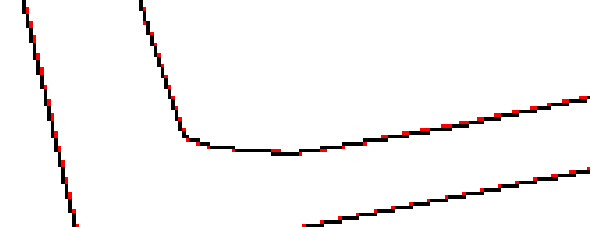 Figure 4: Rasterize the
busroute 6 vector map using the -d flag to create densified lines by adding
extra cells (shown in red). This avoids gaps or lines that consist of cells that
are only diagonally connected.
Figure 4: Rasterize the
busroute 6 vector map using the -d flag to create densified lines by adding
extra cells (shown in red). This avoids gaps or lines that consist of cells that
are only diagonally connected.
SEE ALSO
AUTHORS
Paulo van Breugel | HAS green academy, University of Applied Sciences | Climate-robust Landscapes research group | Innovative Bio-Monitoring research group | Contact: Ecodiv.earth
SOURCE CODE
Available at: r.in.vect source code
(history)
Latest change: Sunday Aug 02 21:22:24 2026 in commit f812111